Free CV templates for Malta: Word, Google Docs and what actually works


Last updated
June 12, 2026
Share on


The right CV template provides a clean structure to fill. The wrong one causes more problems than it solves.
This guide looks at the free Word and Google Docs templates that are suitable for Malta’s job market, what to consider before downloading, and the mistake that trips up candidates who choose style over substance. All the templates listed here can be downloaded for free and are compatible with ATS.
What makes a CV template right for Malta?
A good template should be unnoticed. Recruiters should focus on your skills and experience, not your formatting choices.
Use clean layouts, easy-to-read fonts, and place your most recent role and core skills in the top half of the page. Overly designed templates with multiple columns, icons, and fancy headers may look appealing but often fail with applicant tracking systems (ATS). This can lead to scrambled content or missing details, leaving recruiters with a broken file instead of a strong candidate.
At Konnekt, we often see this: candidates who choose elaborate templates end up with CVs that look good as PDFs but struggle in online applications. Simpler templates usually lead to better outcomes from submission to shortlisting.
Check these three things before downloading any template:
- Single-column layout. Two-column designs may look smart but are often unreliable with ATS parsers. Most employer systems in Malta, including jobsinmalta.com and Konnekt’s candidate portal, use ATS. A single-column layout is the safest choice.
- Standard section headings. ATS systems look for headings like “Work Experience,” “Education,” and “Skills.” Creative headings such as “My Story” can confuse the parser.
- Editable fonts and layouts. Some templates lock elements or use text boxes that are hard to edit. Avoid anything that requires graphic design software for changes.
Five free CV templates for Word
Microsoft Word remains the most practical format for building and editing your CV in Malta. Save the final version as a PDF before submitting.
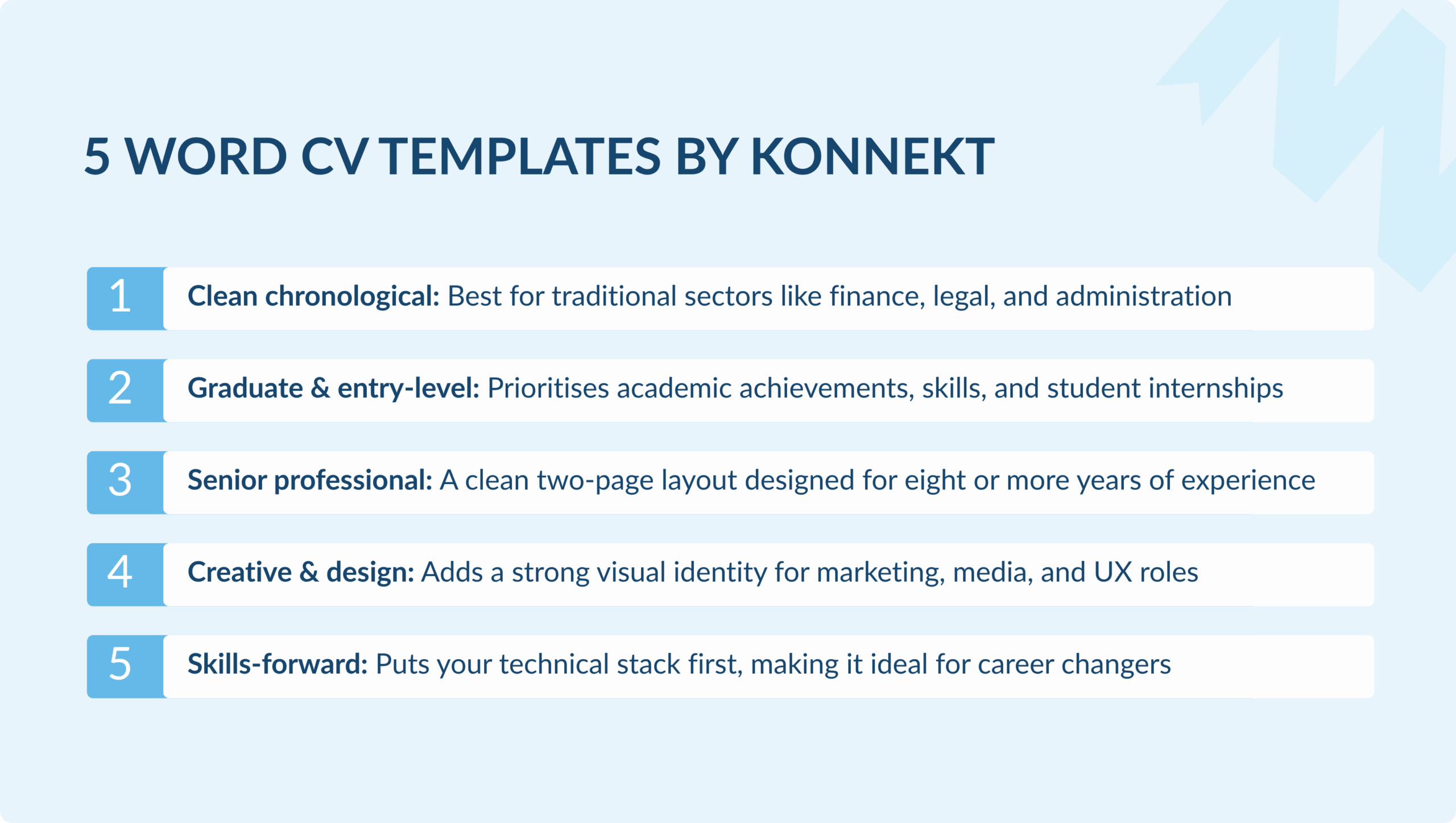
All five templates below were created by Konnekt for Malta’s job market. They are single-column, ATS-compatible, and built around fictional Maltese candidates so you can see exactly how a strong CV looks before you replace the content with your own. Open in Word, edit the details, and save as PDF before submitting.
Template 1: Clean chronological
A straightforward single-column layout that works across all sectors and all experience levels. There are no design distractions, it is fully ATS-safe, and easy to edit in any version of Word. This layout is best for finance, legal, administration, and any role where clarity matters more than creativity. It is based on a fictional operations manager, Sarah Attard.
Template 2: Graduate and entry-level
Designed for candidates with limited work experience, this format prioritises education and skills over work history, leaving space to highlight voluntary work, internships, and extracurricular activities. It is particularly useful for those seeking their first job in Malta or looking to return to the job market after a break, as seen in the example of Luca Farrugia, a fictional business administration graduate.
Template 3: Senior and experienced professional
A two-page format suited to candidates with 8 or more years of experience, leading with a strong professional summary and core competencies. This format allows for detailed role descriptions without clutter, is single-column, and is ATS-safe, inspired by a fictional Head of HR, Claire Borg Grech.
Template 4: Creative and design-influenced
A single-column layout with a stronger visual identity, suitable for marketing, design, UX, media, and communications roles where personality is an asset. Based on a fictional UX designer, Daniel Pace.
Template 5: Skills-forward
Puts a technical skills section at the forefront, before work history. This format is ideal for career changers, where specific technical skills are the main factor in hiring decisions. The work experience section still follows, but the skills take priority. It is based on a fictional QA engineer, Rachel Zammit.
Using the templates in Google Docs
Prefer working in Google Docs? You can use any of the five templates above in Google Docs with an extra step.
Download the Word (.docx) file, then upload it to Google Drive by selecting New, then File upload. Once uploaded, right-click the file and choose to Open with Google Docs. Google Docs will convert it automatically, preserving the layout in all five templates, as they have a single-column layout with no complex formatting elements.
When your CV is ready, you can export it as a PDF by going to File, then Download, then selecting PDF Document (.pdf). Never submit a Google Docs share link as your application, as most Malta recruitment portals and ATS systems require a file attachment.
Europass: when to use it and when not to
The Europass template needs its own section. It raises more questions than any other format for job seekers in Malta.
Europass is the standard CV format across EU member states. It has a common structure, making it easy to compare qualifications and experience. You can complete it for free at europass.europa.eu. Many employers in Malta accept it.
However, the issue isn’t acceptance; it’s impact. Europass’s rigid layout makes all CVs look similar. When recruiters sift through 80 to 100 applications, a Europass CV often fails to stand out. This format emphasises completeness over clarity, which can hurt you during the quick 8 to 12-second scan most CVs receive.
Use Europass for public-sector roles, EU body applications, or any job requiring a standardised format. For private-sector roles in finance, iGaming, IT, legal, and general business, an original template is a better choice.
CV template mistakes that Malta recruiters see regularly
Choosing the right template is just the start. How you fill it in is more important than which one you pick. Here are the common template mistakes we see at Konnekt:
Overfilling a one-page template. Some candidates use a compact one-page template but try to fit 12 years of experience. They shrink the font to 9pt and reduce the margins to 0.5cm. This makes the CV unreadable. If your experience takes up two pages, use a two-page template. One page suits graduates and early-career candidates. Two pages are better for most experienced professionals.
Using a creative template for a conservative sector. A multi-column design with a photo and a skill-rating bar may work for a graphic designer. However, for an accountant role at a Big 4 firm in Malta, it will raise eyebrows. Match the template’s style to the sector’s expectations.
Not saving as PDF. This is a common mistake. Word and Google Docs files can look different depending on the reader’s software and system. Fonts may shift, spacing can break, and your careful layout might not appear as intended. Always save as PDF before submitting, unless the employer asks for a Word file, which is rare.
Leaving placeholder text in. Things like “[Your Name]”, “[Date from]”, and “[Brief description of your role]” are often left in. It happens more than you’d think. Always read through your document before you submit it.
Which template should you choose?
Use this table to pick the right starting point.
| Your situation | Template type | Format |
| First job or graduate in Malta | Entry-level / graduate template | Word or Google Docs |
| 3 to 8 years’ experience, any sector | Clean chronological single-column | Word or Google Docs |
| 8+ years’ experience | Senior two-page template | Word |
| Career change or skills-led application | Skills-forward template | Word |
| Creative, marketing, design role | Design-influenced template (use with caution on ATS) | Word |
| Public-sector or EU body application | Europass | europass.europa.eu |
Key takeaways
The template is the starting point, not the destination. Pick a clean, single-column layout that matches your sector’s expectations, fill it with specific achievements rather than job descriptions, and save it as a PDF before submitting. For most Malta private-sector roles, a well-filled simple template will outperform a visually impressive one every time.
Once your template is ready, the full guide to what goes in it is in our CV writing guide for Malta.Visit konnekt.com to check out current jobs in Malta. Sign up with Konnekt to find roles that match your skills. Our recruiters review every registration and will get in touch if there’s a fit in our pipeline.
Frequently asked questions
For most roles in Malta, the best free CV template is a clean, single-column Word or Google Docs template with standard section headings. The “Swiss” template in Google Docs and Microsoft’s basic chronological template are both reliable starting points. Avoid two-column designs and heavy graphics if you are applying through an online portal or ATS, as these can cause your content to render incorrectly. Template choice matters far less than the content you put in it.
Either works. The practical difference is where you are most comfortable editing. Both produce a professional result when saved as a PDF before submitting. If you use Google Docs, go to File, then Download, then PDF Document to export your final version. Never submit a Google Docs share link as your CV application.
Europass is accepted across Malta but is not the strongest choice for private-sector roles. Its fixed structure makes CVs look similar at first glance, which can work against you when a recruiter is reviewing a high volume of applications. Use Europass for public-sector, EU body, and standardised applications. For finance, iGaming, IT, legal, and general business roles, a well-structured original template will typically serve you better.
Two-column templates are not recommended for online applications in Malta. Most recruitment portals and ATS software parse CVs top-to-bottom and can misread or scramble two-column layouts. The result is a CV that looks fine as a PDF but produces a broken or incomplete profile in the recruiter’s system. Single-column layouts are safe for all submission methods.
In Microsoft Word: File, then Save As, then choose PDF from the format dropdown. In Google Docs: File, then Download, then PDF Document (.pdf). Always open the PDF once saved to confirm the layout has held before submitting. Check that fonts have not shifted, spacing looks correct, and no placeholder text remains.

About the author: Emma joined Konnekt in 2021 and has been working in recruitment ever since. She began her career as a Recruitment Specialist within the Finance & Legal Recruitment Team before expanding her expertise across other sectors, including Tech. Over the years, she progressed in her role and now oversees all recruitment teams in her current position as Recruitment Operations Manager.